What Meltify can import
- Spotify: playlists, albums and single songs from a link. Connect your account in Settings to import your own playlists in full, plus your Liked Songs.
- YouTube and YouTube Music: playlists, albums and single videos.
- Apple Music: public playlists, albums and songs.
- Deezer: playlists, albums and songs, with no account needed.
- eSound: eSound's curated playlists come from Deezer, so paste the Deezer link. For personal eSound playlists, export them as a CSV and paste the list in.
- Any list of songs: paste lines like
Artist - Title, or a CSV exported from tools like Exportify.
How to bring them in
- Copy the playlist's share link from the app it lives in.
- In Meltify, open Import and paste it. Meltify recognises which service it's from and shows a preview.
- Press Save & download all to keep every song offline, or Save to library to download later.
- Repeat for your other playlists. They all end up side by side in Your Library.
Shortcut: you can paste a link straight into the search bar, and Meltify offers to import it.
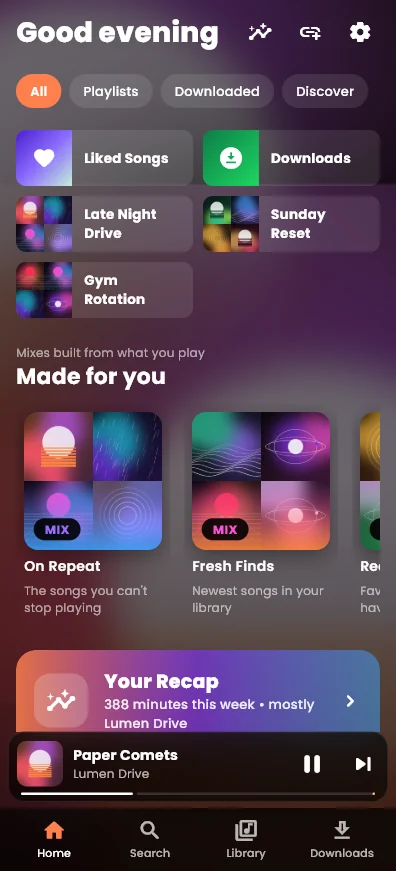
Why one library is better
- One search finds a song no matter where it came from.
- Made-for-you mixes like On Repeat, Fresh Finds, Rediscover and a mix for each of your top artists, built from all of it.
- Your Recap shows minutes listened, your streak, and top songs and artists across every source.
- One set of downloads: a song that's in two playlists is only downloaded once.
- Re-sync any imported playlist to pull in new songs from the original.
No accounts needed for public links. Meltify only asks you to log in if you want to import your own private Spotify playlists.
Get Meltify
Free for Windows, Mac, Android and iPhone.
Download Meltify